The problem started small. At first, I just saw a flash when opening a browser window. I thought nothing of it. Later, the screen blinked black for a second while I was watching a video. Another time, the display looked blurry after waking my PC from sleep. Somewhere around then, I realized things were off.
Over time, the glitches became more frequent. Unfortunately, they didn’t always happen. That made troubleshooting more difficult. Some days my screen worked perfectly for hours. Others, it would flicker multiple times before lunch. Eventually, I started to fear my monitor was going out or maybe my graphics card was on its last legs.
BUT before I tossed out money on new hardware, I decided to check my drivers. That decision ended up being a good call. After scanning my PC with Driver Booster, updating old drivers, and setting a restore point just in case, my screen stopped flickering. The whole process was easier than I expected.
Finding Fault in My Drivers
My screen issues did not always act the same way. Because of this, it was easy to believe they were unrelated problems. In hindsight, I should have realized they were all pointing to one possible cause: my drivers. Here were some of the things I experienced:
- Screen flickering when opening/closing apps
- Monitor going black for one or two seconds
- Blurry screen after sleep mode
- Display resolution randomly changed
- Colors would look slightly off in certain apps
- Game would launch on the wrong monitor
- Videos would stutter with a quick flash or screen tear
- Second monitor would take a while to show up after turning on PC
The first thing I checked was the easy stuff. Was my display cable pushed all the way? Yeah, it was. Was there another cable I could try? I gave that a shot too. Same thing with my monitor power cable. I also restarted my PC.
These troubleshooting steps are always worth running because a loose cable can sometimes cause screen flickers or blackouts. In my situation though, nothing changed. My hardware checked out fine, but the display was still doing weird stuff. That led me down the path of checking software.
Why Old Drivers Can Cause Display Issues
Drivers help Windows operate your computer hardware. When it comes to your display, the graphics driver is usually the most important one to keep updated. If that driver is out of date, corrupted, or doesn’t match up with a recent Windows update, strange things can happen. You may see flashes on your screen. Resolution may look off. Monitors can stop being detected. You might even experience a black screen when waking your PC from sleep.
I hadn’t manually updated my graphics driver in quite some time. Windows would install updates for my PC, but I never double-checked if my display driver (and other system drivers) were up-to-date.
I suppose I could have gone into Device Manager and manually searched for each driver I wanted to update. I’ve done this in the past, and it can be time-consuming. You’ll need to know exactly which graphics card you own. Then search the manufacturer’s website for the official driver. Make sure you’re getting the correct file for your version of Windows. Downloading the wrong driver can sometimes cause more problems.
Instead of risking a manual driver update, I wanted to run a quick check. Here I came across Driver Booster.
My Initial Scan with Driver Booster
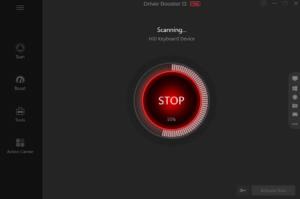
Running my first scan took almost no effort. Install the program. Open it up. Press the button to start scanning for driver updates. You don’t even need to know the specific name of each hardware device in your PC—the driver updater automatically handles the detection for you. Driver Booster listed all of my outdated drivers right away. My graphics driver was near the top of the list, and several other drivers tied to my system hardware were out of date too.
Makes sense to me. While your PC graphics driver will usually cause a display issue, other drivers can be a factor. Chipset drivers, monitor drivers, USB drivers, and system drivers could all have an impact as well. Things like docking stations, second monitors, and USB display adapters require additional drivers that might affect your display.
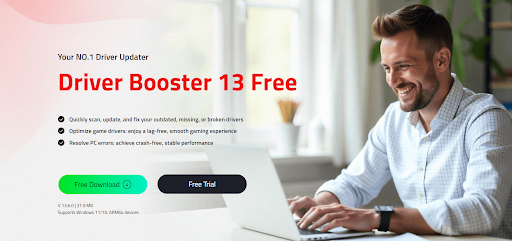
Driver Booster 13 can scan and update your device drivers and game components automatically, covering more than 18 million drivers from nearly all hardware manufacturers. It works with Windows 10 PCs and Windows 11 computers and supports Windows on ARM64 devices too.
Best part? Driver Booster spelled out exactly what I was working with. I no longer needed to open up Device Manager, click through hundreds of devices, and pray Microsoft found the latest driver.
Restoring My Confidence with a Safety Net
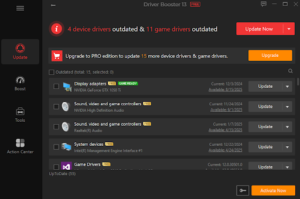
I never like updating a driver without a safety net. Drivers can be tricky. The right update can solve an issue, but downloading the wrong file can create new problems. That’s why I checked a couple of settings before hitting the update button. Driver Booster includes options to back up your current drivers and create a system restore point. You’ll want that just in case your new graphics driver causes the problem to get worse. Or better yet, the new driver completely bricks your PC. Essentially, this is what I did:
- Closed any open programs and saved work.
- Made sure my laptop was plugged into power and I was connected to Wi-Fi.
- Reviewed the list of drivers found during the scan.
- Checked that both “Backup Driver” and “Create System Restore Point” were turned ON.
- Updated my graphics driver and a few others that displayed as being out of date.
- Restarted my PC.
- Tested my monitor, videos, and games BEFORE updating everything else.
If you’re going to update drivers related to a problem, always take precautions. For me, I didn’t want to click “Update All” and risk driving my PC into the ground. I wanted to focus on drivers that are most likely responsible for my troubles.
According to their product description, Driver Booster backs up drivers before it installs new ones. Users can roll back to these driver backups if needed. It also creates Windows Restore Points automatically.
Updating Drivers for My Display
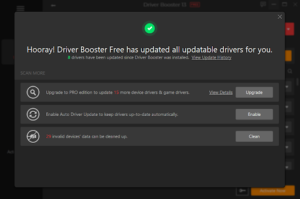
I started with updating my graphics driver first. I also updated a few drivers connected to my graphics card. The install process was super easy. I didn’t have to head to half a dozen different hardware websites to manually download and compare driver version numbers. Driver Booster did all the work. I watched the updates install and restarted my PC.
Everything seemed fine when my PC came back up. My screen came back at the proper resolution. Now this may not sound like a big deal, but it was an improvement. Prior to the update, I had woken my PC up a few times to see the resolution set lower than what I selected.
Next, I tested the situations that normally gave me grief:
- I put my PC to sleep, then woke it back up several times.
- Opened and closed browser windows.
- Played a video in full-screen mode.
- Connected my second monitor.
- Launched a game, then went into the display settings.
- Checked my screen after a normal PC reboot.
Miraculously, the annoying flicker didn’t return. More importantly, the screen no longer went black when waking from sleep mode. My second monitor also appeared almost instantly.
I used my PC for a few days and never saw any of the original problems return. One small update may not fix everything, but in my case it did the trick.
Final Words
Out of all the PC problems I’ve dealt with, random display flickers always annoyed me. A black screen in the middle of work or while gaming can lead you to believe your PC is about to explode.
In my situation, outdated drivers were partly to blame. Being able to scan for driver updates and create a restore point made updating with Driver Booster quick and easy. Now my screen doesn’t randomly blink or go black for no reason. If you’ve been having similar problems with your display, it might be worth running a driver check as well.